
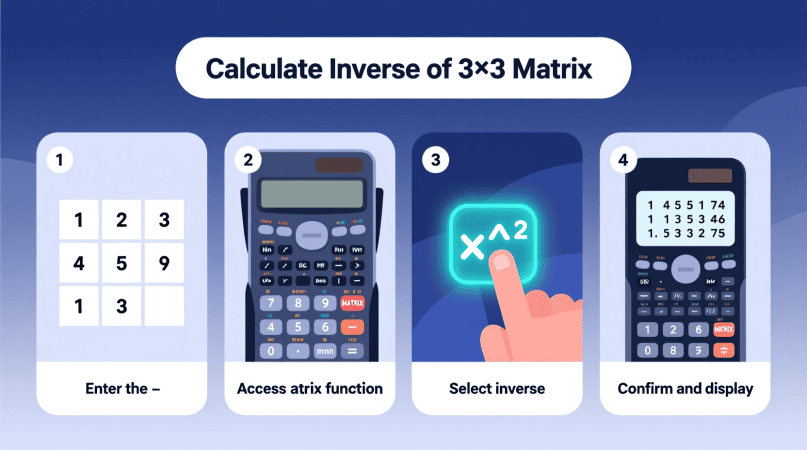
Manually calculating the inverse of a 3×3 matrix can be long and error-prone, especially when fractions or decimals are involved. Thankfully, most modern calculators—like the TI-84, Casio fx-991EX, or HP Prime—come with built-in matrix functions that let you compute the inverse in seconds.
In this guide, you’ll see clear steps for different calculator types, real examples, and tips on verifying your results. And if you want to double-check your answer instantly, try the Inverse Matrix Calculator online.
Key Things to Know Before Starting
- Only square matrices (like 2×2, 3×3) can be inverted.
- If the determinant = 0, the matrix is singular and has no inverse.
- The calculator result may appear in decimals by default. Some models allow switching to fractions.
Using TI-83 / TI-84 Graphing Calculators
Steps: A = [ 2 1 3 ; 1 0 2 ; 4 1 8 ]
Tip: To display fractions instead of decimals, use MATH → frac after the result. Those needing advanced output can use the symbolic inverse calculator for exact expressions.
Using Casio Scientific Calculators (fx-991ES, fx-991EX, fx-115ES)
Steps:
- Press MODE and select Matrix (MAT).
- Choose MatA, then set size as 3×3.
- Enter all elements row by row.
- On the main screen, type
MatA⁻¹. - Press = to display the inverse.
Press S⇔D to toggle between fraction and decimal output. For larger matrices, switch to the 6×6 inverse calculator for comprehensive results.
Using HP Prime or HP 50g Calculators
Steps:
- Open the Matrix Editor.
- Define a new 3×3 matrix.
- Enter the elements carefully.
- On the home screen, call the matrix.
- Press the x⁻¹ key to calculate the inverse.
Example: Inverse of a 3×3 Matrix
Take the matrix: A = [ 2 1 3 ; 1 0 2 ; 4 1 8 ]
- On TI-84: Input
[A]→[A]⁻¹. - On Casio fx-991EX: Define
MatA→ computeMatA⁻¹. - On HP Prime: Enter via Matrix Editor → press inverse.
All will give the same result (in decimals or fractions depending on settings). If you prefer step-by-step operations, the Gauss–Jordan method explains each row transformation.
Common Errors & Troubleshooting
- Error: Singular Matrix → determinant is zero; inverse does not exist.
- Dimension Mismatch → matrix must be square (3×3).
- Messy Decimal Output → switch to fraction mode if your calculator supports it.
- Wrong Input → double-check row/column entries.
Verification
To confirm correctness:
- Multiply your original 3×3 matrix by the result.
- If the answer is the identity matrix, your inverse is correct.
FAQs
Q1. Can all calculators compute 3×3 inverses?
Only models with a matrix mode (like TI-84 or Casio fx-991 series) can do this.
Q2. Why does my calculator show “Error: Singular Matrix”?
It means the determinant is zero; the matrix has no inverse.
Q3. How can I switch between decimals and fractions?
TI calculators use MATH → frac; Casio uses S⇔D.
Q4. Can calculators handle larger than 3×3 inverses?
TI graphing calculators can go beyond 3×3, while Casio fx-991 is limited to 3×3.
Q5. How do I confirm my answer is correct?
Multiply matrix × inverse; if result = identity, the inverse is valid.
- If you don’t have this specific model, check our general guide for scientific calculator usage.
- Students using Texas Instruments devices should follow the steps for the TI-84 calculator.
- To understand the underlying math, you can try solving 3×3 matrices by hand.
- Once you master this dimension, you can move on to calculating 4×4 inverses.
- Most devices automatically handle the determinant calculation required for the inversion.
- For programming applications, it is often more efficient to use Python than a handheld device.
- The keystrokes will be significantly different if you own a Casio FX-991EX.
John H. Cleveland is the creator of Inversematrixcalculator.com, a trusted resource dedicated to providing accurate and easy-to-use matrix calculation tools. With a strong background in mathematics and a passion for simplifying complex concepts, John focuses on delivering clear, reliable solutions for students, educators, and professionals. His goal is to help users save time and confidently solve matrix problems with precision.